
The Shape Detection API

Photos constitute a large chunk of the information in the Internet, especially in this modern age. Some of these images consist of recognizable features such as human faces, text, barcodes, and QR codes. These features have a lot of use cases, but detecting them is very computationally expensive. Fortunately, hardware manufacturers, particularly on mobile devices, have already started supporting these features on their platforms. These have been powering several applications such as face detection in cameras, barcode scanner apps, and many others. Web applications, on the other hand, still don’t have access to these hardware capabilities, making it necessary to use computationally demanding libraries and third-party services. The Shape Detection API aims to change this.
The Shape Detection API is an experimental API for detecting “shapes” (i.e. faces, barcodes, and text) in images on the Web using the integrated hardware capabilities. The API is currently being incubated by the Web Platform Incubator Community Group (WICG), hopefully it gets standardized soon as it’s going to be a good addition to the Web’s capabilities.
Anyway, the current Editor’s Draft of the Shape Detection API provides three interfaces: FaceDetector, TextDetector, and BarcodeDetector. These APIs are already available behind a flag since Chrome 57 and Opera 44, both for desktop and mobile. In Chrome, you can enable them by enabling the Experimental Web Platform Features flag. Each of these APIs detect features from an image source, so let’s talk about that briefly.
Update: Sept. 20, 2018
As of Chrome 70 (beta as of Sept. 13, 2018), the Shape Detection API is already available for Origin Trial. This means that visitors to your site can experience features that use the Shape Detection API without having to enable the experimental features flag.
In order to do that, you would need to sign up for Chrome’s origin trials through this form. They will then email you with your origin trial token and instructions on how to use it.
Image Sources
An image source is the image that is going to be used for the detection process, and can be one of the following:
- An
HTMLImageElement, or<img>. In this case, shapes will be detected from the image represented by the element. If the element represents an animated image (e.g. a gif), the animation’s default image will be used if one is available. Otherwise, the first frame of the animation will be used. - An
HTMLVideoElement, or<video>. In this case, the video frame at the current playback position when shape detection was invoked will be used as the image source. - An
HTMLCanvasElement, or<canvas>. In this case, whatever’s currently rendered on the element will be used as the image source.
Face Detection
Face detection can be done using the FaceDetector interface. FaceDetector
represents the underlying platform’s component for detecting human faces in
images. To start using it, all you have to do is create a FaceDetector
instance in your Javascript code.
const faceDetector = new FaceDetector({
    maxDetectedFaces: 10,
    fastMode: true,
});
The FaceDetector constructor accepts an optional options object with the
following properties:
maxDetectedFaces: The maximum number of faces to look for in the image source.fastMode: Tells the browser to try to prioritize speed over accuracy.
The FaceDetector instance’s detect() method can then be used to detect
human faces from the given image source.
const imageSource = document.querySelector('img');
// Or you can use a video or canvas element as an image source

faceDetector.detect(imageSource).then(handleDetectedFaces).catch(console.error);
faceDetector.detect() returns a Javascript Promise which resolves to an array
of DetectedFace objects for each human face that was detected from the image
source. Each DetectedFace object has the following properties:
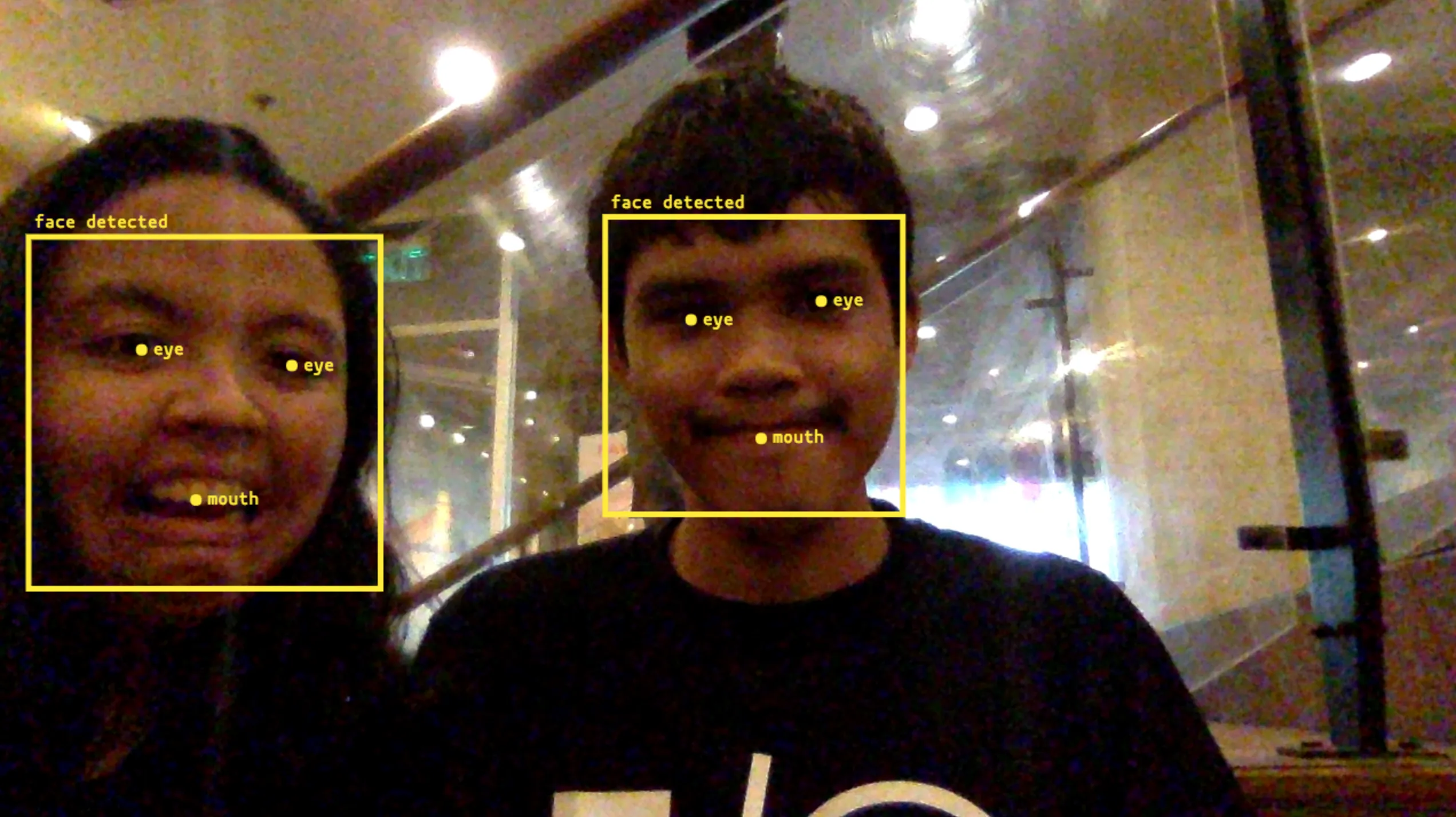
boundingBox: An object describing a rectangle that indicates the position and boundaries within the image where the face was detected.landmarks: An array ofLandmarkobjects. A landmark is a feature of interest that are related to the detected face, which at the moment can only either be the mouth or an eye. In some cases when the platform cannot provide landmarks information, this property will just benull.
function handleDetectedFaces(detectedFaces) {
    // detectedFaces could look like this:
    // [
    //     {
    //         boundingBox: {
    //             x: 545,
    //             y: 187,
    //             top: 187,
    //             left: 545,
    //             right: 855,
    //             bottom: 497,
    //             width: 310,
    //             height: 310
    //         },
    //         landmarks: [
    //             {
    //                 locations: { x: 627.5, y: 262.5 },
    //                 type: 'eye'
    //             },
    //             {
    //                 locations: { x: 763, y: 258 },
    //                 type: 'eye'
    //             },
    //             {
    //                 locations: { x: 701, y: 418 },
    //                 type: 'mouth',
    //             }
    //         }
    //     }
    // ]
}
These objects can be used for many things, like adding a rectangle overlay around each detected face:
Text Detection
Text detection can be done using the TextDetector interface. TextDetector
represents the underlying platform’s component for detecting texts in images.
To start using it, all you have to do is create a TextDetector instance in
your Javascript code.
const textDetector = new TextDetector();
The TextDetector constructor does not accept any arguments, and the instance
has a detect() method which can be used to detect texts from the given image
source.
const imageSource = document.querySelector('img');
// Or you can use a video or canvas element as an image source

textDetector.detect(imageSource).then(handleDetectedTexts).catch(console.error);
textDetector.detect() returns a Javascript Promise which resolves to an array
of DetectedText objects for each text that was detected from the image
source. Each DetectedText object has the following properties:
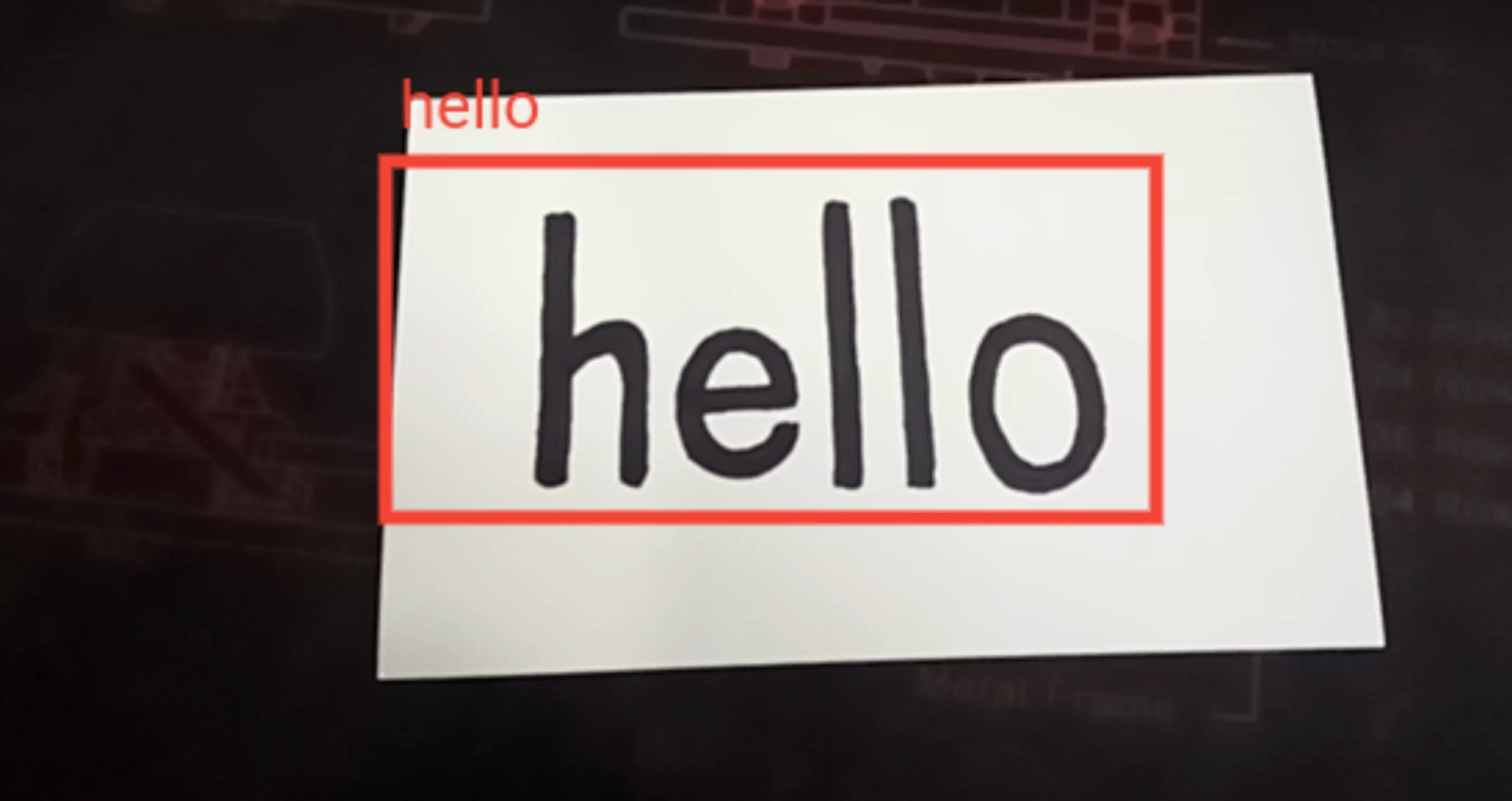
boundingBox: An object describing a rectangle that indicates the position and boundaries within the image where the text was detected.rawValue: The string value of the detected text.
function handleDetectedTexts(detectedTexts) {
    // detectedTexts could look like this:
    // [
    //     {
    //          boundingBox: {
    //              x: 469,
    //              y: 466,
    //              top: 466,
    //              left: 469,
    //              right: 585,
    //              bottom: 485,
    //              width: 116,
    //              height: 19
    //          },
    //          rawValue: 'hello'
    //     }
    // ]
}
Barcode Detection
Barcode detection can be done using the BarcodeDetector interface.
BarcodeDetector represents the underlying platform’s component for detecting
barcodes and QR codes in images. Aside from detection, it also decodes the
message represented by the barcode or QR code. To start using it, all you have
to do is create a BarcodeDetector instance in your Javascript code.
const barcodeDetector = new BarcodeDetector();
The BarcodeDetector constructor does not accept any arguments, and the
instance has a detect() method which can be used to detect barcodes from the
given image source.
const imageSource = document.querySelector('img');
// Or you can use a video or canvas element as an image source

barcodeDetector.detect(imageSource).then(handleDetectedBarcodes).catch(console.error);
barcodeDetector.detect() returns a Javascript Promise which resolves to an
array of DetectedBarcode objects for each barcode that was detected from the
image source. Each DetectedBarcode object has the following properties:
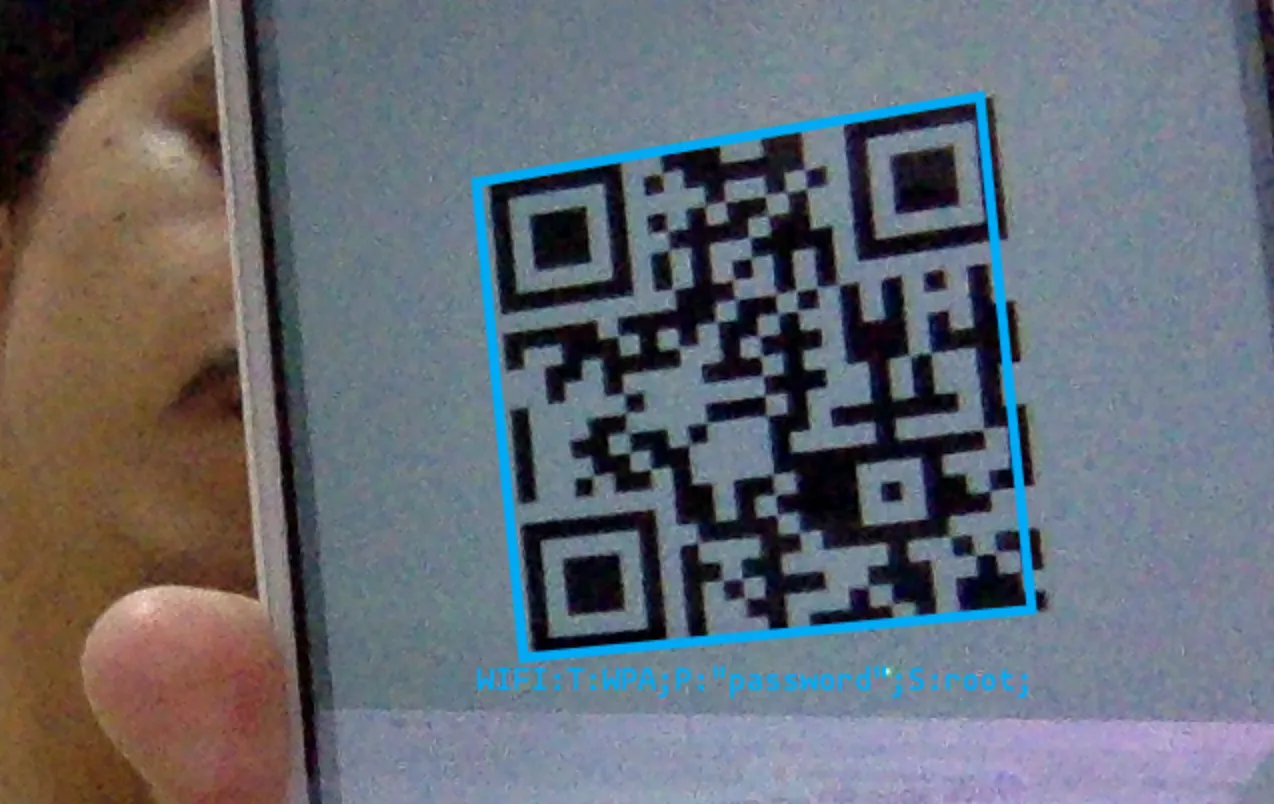
boundingBox: An object describing a rectangle that indicates the position and boundaries within the image where the barcode was detected.rawValue: The string value that was decoded from the barcode.cornerPoints: An array of points corresponding to the coordinates of each corner of the detected barcode. It starts with the top-left corner and goes in clockwise direction. The points do not necessarily represent a proper rectangle or square due to perspective distortions.
function handleDetectedBarcodes(detectedBarcodes) {
    // detectedBarcodes could look like this:
    // [
    //     {
    //          boundingBox: {
    //              x: 320,
    //              y: 366,
    //              top: 366,
    //              left: 320,
    //              right: 524,
    //              bottom: 563,
    //              width: 204,
    //              height: 197
    //          },
    //          rawValue: 'https://arnellebalane.com/',
    //          cornerPoints: [
    //              { x: 391, y: 366 },
    //              { x: 524, y: 428 },
    //              { x: 462, y: 563 },
    //              { x: 320, y: 506 }
    //          ]
    //     }
    // ]
}
Additional Notes
Using the Shape Detection API is not as hard as you might initially think, but here are some caveats that you will need to look out for (although I believe that this is because the API is still in its very early stages):
- The availability of the the
FaceDetector,TextDetector, andBarcodeDetectorconstructors only means that the Shape Detection API is available in the browser, but not necessarily that the underlying platform has support for those features. If the platform does not support a particular feature,.detect()will reject with an error saying e.g. “Face detection service unavailable.” - In Chrome Canary v61 for macOS,
TextDetectorcan detect text and its bounding box properly, but the rawValue is just an empty string. - In multiword texts,
TextDetectorsometimes detects the entire string, and sometimes by word or groups of words. - All detectors are currently not available in desktop Chrome for Ubuntu.
Conclusion
I made a little demo showcasing the APIs that I talked about in the previous sections. The demo gets a video stream from your webcam and tries to detect shapes from the stream. To view it, you need to be using Chrome 57 or newer and enable the Experimental Web Platform Features flag.
The Shape Detection API gives Web applications the privilege to use the underlying platform’s capabilities for detecting faces, texts, and barcodes in images. Since it is a native Web API already available directly within the browsers, this could potentially eliminate the need for third-party libraries and services depending on the use case. This could also result in faster Web applications which would be really great for our users. And since it can work offline, it would be useful for Progressive Web Apps that require shape detection capabilities.
Resources
- Accelerated Shape Detection in Images: The latest Editor’s Draft for the Shape Detection API.
- Shape Detection API Specification: The WICG Github repository for the Shape Detection API specification.
- arnellebalane/shape-detection-demo: The Github repository for my Shape Detection API demo application.